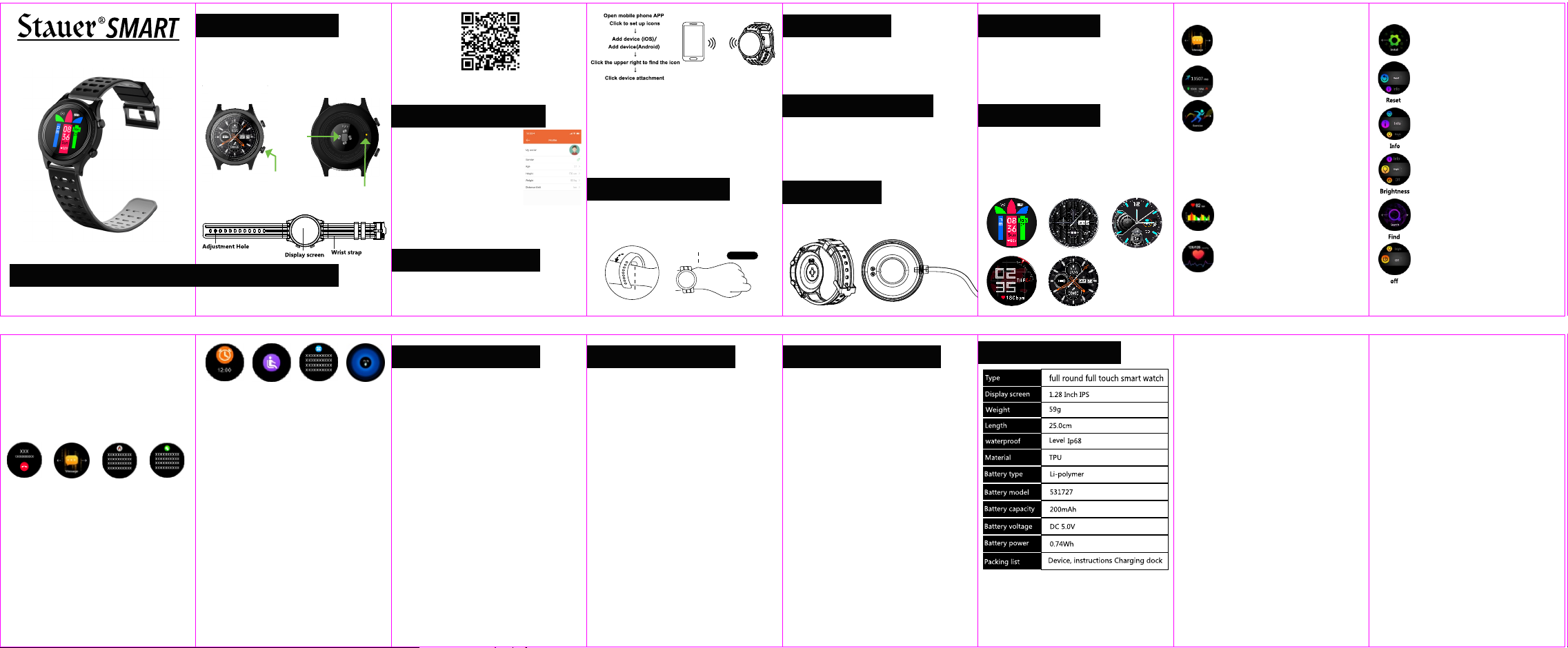
Message Push Interface
Swipe to “Message” interface to view
current messages. Click and hold to view
message history
Status Interface
Swipe to “Status” screen to view steps,
miles walked and calories burned.
Exercise Interface
Swipe to “Exercise” screen. From “Exercise”
screen tap to choose your preferred mode of
exercise. Swipe up/down between exercise
types, then tap selected mode to begin
measuring selected activity. Press upper
right case button to select pause or start of
activity. Pausing the activity then pressing
the upper right button clears the activity. To
quickly access the “Exercise” interface,
press the lower button on your watch bezel.
Heart Rate Interface
Swipe to “Heart Rate” screen to view your
current heart rate. Be sure that the watch
sensor is in firm contact with your wrist.
Blood Pressure Interface
Switch to the Blood Pressure Interface then
tap the screen to start testing blood
pressure. Once blood pressure test is
complete, measurements will be shown on
screen, or can be viewed in the Tefiti App.
Pressing the upper side button will exit from
the blood pressure mode.
Settings Interface
From the “Settings”, screen tap to reveal
options. Swipe up or down to select desired
setting.
Reset will reset your watch to factory
settings.
Info will reveal the watch’s MAC Address
and software version.
Brightness allows you to increase or
decrease screen brightness.
Find Press and hold the “Find” interface and
your phone will ring if within Bluetooth
connectivity range.
Off will power down your Stauer smart
watch. The watch will confirm shutdown by
vibrating. To power up the watch, hold the
upper bezel button.
To Exit from “Settings” press the upper
bezel button.
Reset
Executive
Before You Begin
The Watch Case
Wrist Band and Screen
App Functions & Settings
Installing the TEFITI App
Scan the following QR code or visit your smart phone’s
app store to download and install “Tefiti”.
We suggest that you establish a full charge of your New
Stauer Smart Watch using the included charging dock.
A full charge will be indicated on the display screen.
Heart
Rate
Sensor
Quick link to
“Exercise” mode
Magnetic
Charging Point
Device requirements: iOS9.0 and above: Android 4.4 and
above to support Bluetooth
®
5.0. Android 6.0 and above
devices need to be turned on to use GPS.
Personal Information
and Exercise Goals
After starting the App, set up
your personal information.
Me > Click Avatar
• Head portrait, gender, age, height
and weight can be added to
enhance accuracy of your workout.
• Customize your daily exercise goals.
• Choose settings by selecting the gear icon. To
choose measurement units, select “Unit” and select
your preferred units of measurements for length,
weight and temperature
Pairing with Your Smart Phone
Before using your Stauer Smart Watch, you will need to
pair it with the App on your phone After pairing, the
watch will synchronize time and collect data for
viewing in the App.
Bluetooth Connection: After successfully pairing, the
Tefiti App will automatically save your Stauer Smart
Watches Bluetooth address. While the App is open or
operating in the background and is in proximity, it will
automatically pair with the watch.
Data Synchronization: Pulling down on the home screen
of the App will manually synchronize watch data. If
needed, the watch is capable of storing collected data
for 7 days before having to synchronizing with your
smart phone. Data collected for longer periods will lead
to synchronization times of as long as 2 minutes
Sleep Detection Function
When sleeping, the watch will enter sleep monitoring
mode detecting your deep sleep/shallow sleep/waking
time measuring your sleep quality. Data is stored and
can be viewed in the Tefiti App.
Notification Functions
Notification functionality can be accessed from the Tefiti
App. Select the application that you wish to receive
notifications from. When your Stauer Smart Watch is
connected by Bluetooth to your phone, notifications will
be indicated by a vibration on the watch.
Call Notification: When your phone receives a call, the
watch will vibrate as notification. If the caller’s name is
in the phone’s address book, the caller’s name will be
shown on the watch. If the name is not in the address
book, the caller’s phone number will be shown.
Message Notification: When a text message is
received, the watch will vibrate as notification. If the
sender’s name is in the phone’s address book, the
sender’s name and message will be shown on the
watch. If the name is not in the address book, the
sender’s phone number and message will be shown.
QQ Notification: When a QQ message is received, the
watch will vibrate as notification and show the QQ Icon.
WeChat Notification: When a WeChat message is
received, the watch will vibrate as notification and show
the WeChat Icon.
Alarm Clock Notification
In the Tefiti App/Device>Alarm, you can set three
different alarms. While connected with Bluetooth, The
set alarms will cause the watch to vibrate.
Notification: When receiving emails or other types of
information, your Stauer Smart Watch will give you the
appropriate notification when enabled from the Tefiti
App on your connected smart phone.
Sedentary Notification
In the Tefiti App/Device>Alarm, you can set three
different alarms. While connected with Bluetooth, The
set alarms will cause the watch to vibrate.
Charging
When the watch is connected to the charging base,
notifications will be inactive during the charging
process.
WeChat
When target steps set in the Tefiti App are reached,
your Stauer Smart Watch will vibrate. Target Steps can
be set in Tefiti App at App/Profile>Third Party
Service>Connect WeChat.
Troubleshooting
Bluetooth Connection
Confirm that your device’s operating system is Android
4.4 or higher, or iOS 9.0 or higher, and your device
supports Bluetooth 5.0.
Possible remedies to non-pairing
• Signal interference in Bluetooth in your wireless
device may cause loss of connection. If interference
is present and a stable connection is not possible,
check for magnetic or radio interference before
proceeding.
• Turn off Bluetooth then restart.
• Restart the Tefiti mobile phone application or restart
the mobile phone.
• APP is running normaHy in the background and may
not be connected if it is not in the background.
If your Stauer Smart Watch can not be found in your
phone’s Bluetooth device list:
• Make sure that your smart watch is not already
paired with another phone.
• Move your smart watch to a close proximity to your
phone.
• Turn off your phone, wait for 20 seconds then
reattempt the pairing your devices.
Troubleshooting (continued)
Measuring Your Heart Rate
• Your Stauer Smart Watch uses light reflected through
your wrist’s skin to calculate your heart rate. To
ensure an accurate reading, wear your watch so that
the sensor on the back of the watch case remains in
close contact with your skin.
Reminders
Android: Confirm that the phone and watch are
connected through Bluetooth. Then open the “Tefiti”
App and keep it running in the background. If the phone
has security software installed, add “Tefiti” to “trust”
IPhone: Ensure that your phone is paired with your
smart watch. If the phone is not paired with the watch,
restart the phone then check your phone’s Bluetooth
settings to verify that it is now paired.
Is the Stauer Smart Watch waterproof?
The watch supports IP68 waterproof and dust proof
level protection.
Saved Data
Until the watch syncs with your smart phone, seven
days of data can be stored on the watch. Once the
watch is synced with your smart phone, stored data will
be transfered from the watch to the phone. Be sure to
sync your phone and watch on a regular basis to avoid
loosing recorded data.
Care of your Stauer Smart Watch
• Avoid strong impact, extreme heat
• To avoid damage to the watch, do not attempt to
disassemble or open its case.
• The watch is charged with 5V, 500MA. Do not attempt
to overcharge the watch to avoid damage.
• The watch is designed to operate within the
temperature range of 32 and 113 degrees Fahrenheit.
• Do not dispose of the watch into a fire as the battery
might explode.
• Remove water from the watch with a soft cloth to
avoid developing corrosion on charging contacts.
• Avoid contact with solvents, gasoline, alcohol or
insect repellent as it can damage the watch face and
case.
• Do not use the watch in high pressure or high
magnetic environment.
• After swimming dry the watch with a soft cloth or
towel.
• Avoid prolonged contact between the strap with
soap, sweat, allergens and pollutants which may
cause skin allergy or itching.
Wearing Your Watch
1. For best fit, wear the watch behind your “Ulnar Styloid
Process”.
2. Adjust the fit of the watch so that sensors on the back
of the watch case remain in contact with your wrist
Sensor
Left Hand
Ulnar Styloid Process
Power On/Off
1. To start your Stauer Smart Watch, press and hole the
upper right button on the watch.
2. To power down the watch, press and hold the upper
right button, when “Power Off Your Watch” screen
appears, choose on or off. The watch will vibrate as
it powers down.
Using Your Stauer Smart Watch
1. With your Stauer Smart Watch turned on, you can
swipe between screens to select the desired
function.
2. Your screen will “sleep” after 5 seconds of idle time.
This can be adjusted using the App on your smart
phone among other features such as SMS reminders
and call notifications.
Charging
1. Before first use, we suggest achieving a full charge
your Stauer Smart Watch using the included
charging base for best performance.
Bluetooth Connection
Data stored in your Stauer Smart watch including:
steps, sleep time, heart rate, blood pressure can be
stored in the watch for up to 7 days and will
automatically upload to your phone when paired. To
receive notifications for phone calls and text messages,
you will need an active Bluetooth connection between
your watch and smart phone.
Main Interface
• The watch has multiple functions that can be
accessed by swiping between screens.
• After first pairing your smart phone with your Stauer
Smart Watch time and date will be synchronized.
• To select one of the multiple watch interface options,
press and hold your finger on the screen. Slide left/
right to your preferred interface. Tap screen to set.
Call Message QQ WeChat
Alarm Clock Sedentary Other Charging
Technical Specifications
Smart Watch User Manual
Please keep for future reference.
Stauer
®
SMART Executive #46938
REV 10-2020





Praat mee over dit product
Laat hier weten wat jij vindt van de Stauer 46938 Smartwatch. Als je een vraag hebt, lees dan eerst zorgvuldig de handleiding door. Een handleiding aanvragen kan via ons contactformulier.